Shadowrocket Setup Guide
Import your existing details, choose how to route traffic, then connect and verify the result.
Start with a manual connection before adjusting rules or automatic connection conditions.
Reading order: Start with Step 1 if this is your first time using the app. If you've imported successfully but can't access what you need, jump to verification and troubleshooting. The screenshots are official App Store screenshots. Fields may vary depending on the selected Type and app interface; follow what you see on your device.
Add Server: Add a Server or Import a Subscription
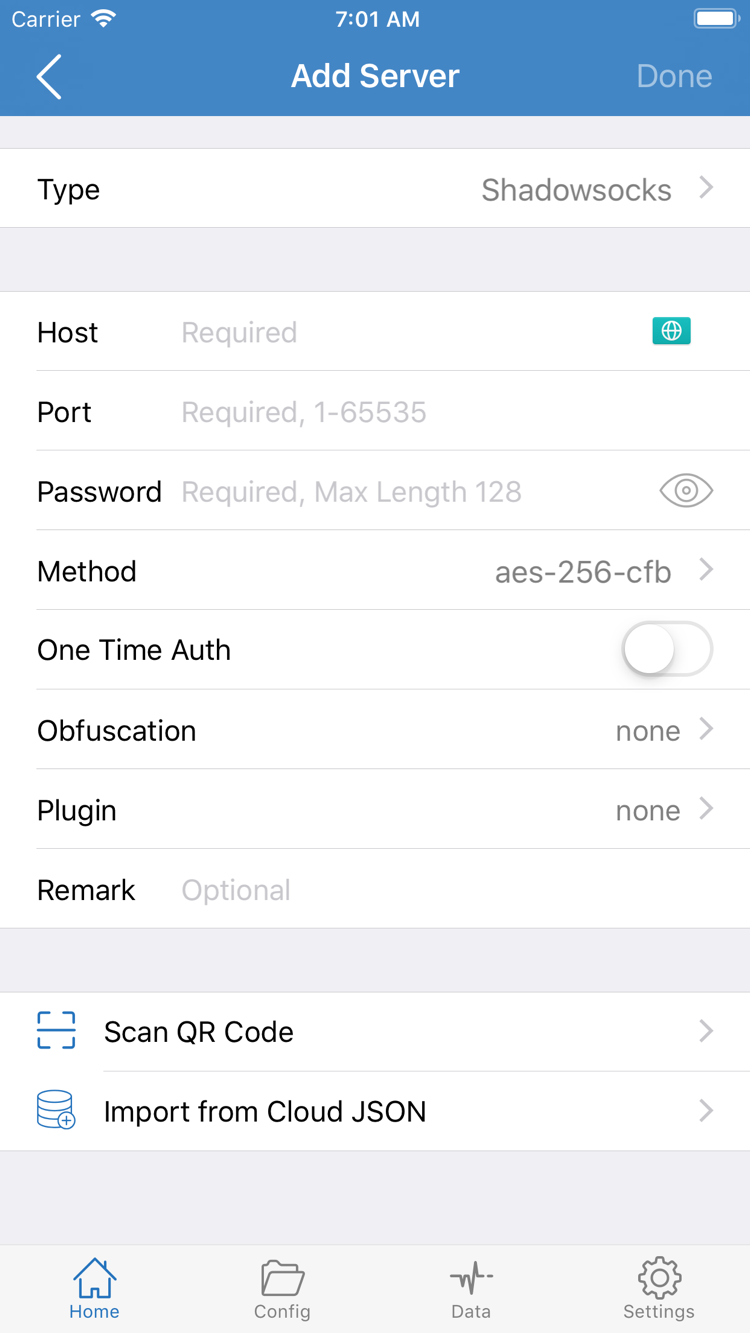
Open Shadowrocket and stay on Home. Don't turn on the connection switch at the top yet. The SERVER section below lists your server entries. Tap Add Server to open the add screen, then follow the option that matches your details: use Subscribe for a complete subscription link, or enter the server address, port, and authentication details manually for the relevant protocol. Choose one method; there's no need to add the same details twice.
Have a Subscription Link? Choose Subscribe
In Add Server, open Type and choose Subscribe. Enter the complete subscription link from your service provider in the URL field. Copy the entire link without any explanatory text, leading or trailing spaces, or line breaks. Subscription links may contain personal access credentials. Keep them as you would a password; don't post them in public forums or send them to anyone who doesn't need them.
Confirm and save, then return to Home and wait for the subscription to load. The information has been added when you see the subscription group and its server entries. If you see the subscription name but no entries, check whether it updated successfully. If the subscription changes, use the update option for its group to fetch the latest content; the exact location depends on the current interface. If an update fails, check that the link is valid and your network is working. Don't try to fix it by repeatedly adding subscriptions with the same name.
Have Server Details? Select Type, Then Fill In the Fields
To add a server manually, select the Type that matches the details you were given, such as Shadowsocks, VMess, VLESS, or Trojan. Then fill in the fields shown for that type. Enter the server domain or address in Host and the port in Port. If Password, Method, or other authentication or transport settings are required, enter them exactly as provided. A field shown in a screenshot may not apply to every protocol.
Host is usually not a web address; don't paste a full subscription link with a path into this field. Don't guess the port. Match any additional settings, such as TLS, server name, or transport path, to your existing details. Ask your service provider about settings you're unsure of; don't disable verification just to try to connect. If you have your own QR code, use Scan QR Code to add it, then check the Type and key settings. Import from Cloud JSON is for the relevant data format, not a general-purpose way to import any link.
After saving, return to Home and select a server in the SERVER group. Confirm that the selection indicator appears beside it. The name is only a label; it does not identify the protocol or show whether the service is working. For your first test, stick with one server entry rather than changing several conditions at once. Next, choose how to route traffic.
Global Routing: Choose Config, Proxy, or Direct
The server entry determines where to connect; Global Routing determines how traffic is handled. Return to Home, tap Global Routing, and choose Config, Proxy, or Direct for your current goal. These are routing modes, not different servers, and they don't change the subscription. Before choosing, decide whether you're testing the server connection or getting ready to use rules for everyday traffic.
Config: Apply the Active Configuration's Rules
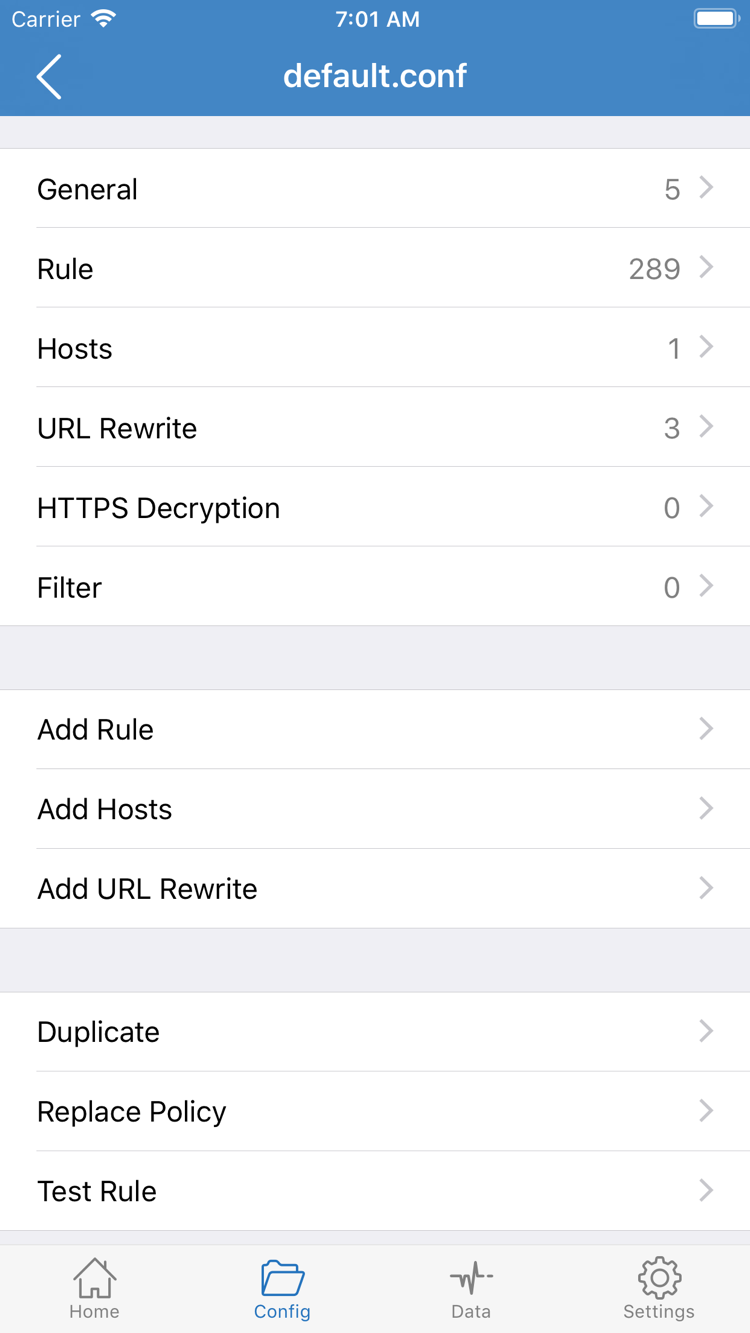
Config uses the rules in the active configuration to determine how traffic is handled. Choose it to route traffic by domain, address, or other conditions, but first check which configuration is active. Open the Config tab at the bottom, find the selected configuration, and review its contents. If you're unsure where it came from or what rules it contains, check before using it. Don't rely on the file name alone.
The screenshot on the right shows the Config editor, not the Global Routing mode menu. General, Rule, Hosts, URL Rewrite, and HTTPS Decryption are separate configuration sections; Add Rule is used to add a rule. You don't need to edit these sections for this beginner guide, enable HTTPS Decryption, or install a certificate to establish a standard connection.
Subscriptions and configurations serve different purposes: a server subscription provides connection entries, while a configuration defines rules and related settings. Don't use a subscription link as the URL for a rule file. If you already have a complete configuration, check that its referenced policies match the selected server. If a rule points to a policy that doesn't exist, the connection switch may be on while some requests are handled unexpectedly.
Proxy and Direct: Use Them for Specific Comparisons
Proxy sends traffic handled by the client through the selected proxy server. It can help reduce rule-based routing as a variable during troubleshooting, but it doesn't guarantee that every destination will work. Direct handles traffic without using the proxy and can be compared with your underlying network connection. Choosing Direct won't fix incorrect server details or prove that the proxy server is working.
For your first rule-based setup, choose Config and check the active configuration. To distinguish a rule issue from a server connection issue, note the original mode, temporarily switch to Proxy, and test the same destination. Restore the original mode when you're done. Don't change the server, rules, and mode all at once whenever something goes wrong. For more on rule matching, see Features and Settings. For common questions about modes, see Troubleshooting.
Home: Turn On the Connection and Approve the System Prompt
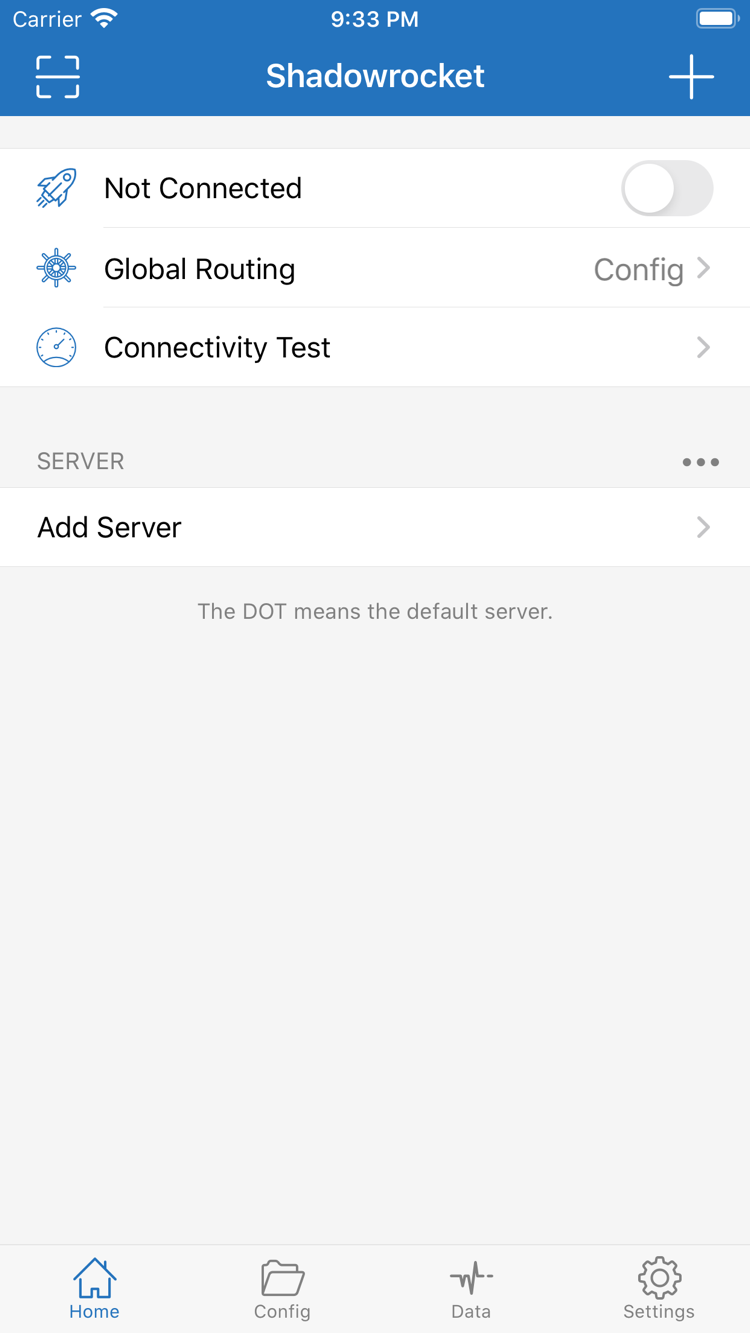
After adding your server and choosing a mode, return to Home and check two things: the SERVER group shows the server you want to test, and Global Routing shows the mode you selected. If you temporarily chose Direct for comparison, switch to the mode you need before connecting. Check that your Wi-Fi or cellular network is working, then turn on the connection switch at the top.
When connecting for the first time, the system may ask permission to add a VPN configuration. This is an iPhone or iPad system authorization step for managing the network connection, not a subscription sign-in page. Read the prompt, check the app name and description, and confirm that Shadowrocket initiated the request. Then authenticate as required by your device. If you cancel, the connection can't proceed; return to the app and try again when ready. You don't need to delete the server you imported.
After approving the request, return to Home and check whether the Not Connected status at the top has changed and the switch remains on. Don't assume the setup is complete just because you toggled the switch: an established system connection, an accessible server, and a working destination page are separate results that need to be verified. Some incorrect settings only become apparent when a request is made, so continue with the next test.
If the switch turns off quickly, the system repeatedly asks for permission, or the app shows an error, note the full message and turn off the connection before troubleshooting. In your device's system settings, check whether the Shadowrocket VPN configuration is present and whether device management restrictions prevent configuration changes. Avoid repeatedly deleting system network settings; this could affect other saved connections and won't replace checking for incorrect server details.
For now, keep the connection manual and don't rush to set up On Demand. Configure automatic connection conditions only after a manual connection is stable. Otherwise, troubleshooting can become confusing: a condition triggering a connection doesn't mean the server is working properly. To disconnect, return to Home and turn off the switch before changing settings or comparing your underlying network.
Connectivity Test: Run a Test, Then Check Real-World Access
Once connected, run Connectivity Test on Home for an initial check. Results depend on the test method and destination. They show whether that specific test received a response, not whether every app and website works. Results from different test methods aren't directly comparable. For troubleshooting, keep the method and network consistent where possible.
Next, open the page or app you actually need to use and check whether it can complete a full request, rather than relying on cached content on the home page. Refresh the page, open one that hasn't loaded before, and check whether images, sign-in, and follow-up requests work. If only one destination fails, note the destination and when it happened. Don't assume the entire connection is down.
Check three things separately: First, is the system connection still active? Second, can the selected server handle the current request? Third, under Config, do the rules send that request to the expected policy? An active connection only answers the first question. Connectivity Test usually covers only specific test conditions. To check whether a request matched the expected rule, use the connection or diagnostic information available in the app; a page loading or failing doesn't prove a rule match by itself.
If access fails under Config, note the current settings and temporarily test the same destination with Proxy. If Proxy works but Config doesn't, check the configuration, rule order, and policy references. If both fail, check the server details, service status, and current network. Use Direct to see how the destination behaves on your underlying network; don't use that result to draw conclusions about the security or integrity of the proxy connection.
Once the test succeeds, restore the mode you plan to use every day and check the actual destination again. If you switch from Wi-Fi to cellular, test again on the new network; success on one network doesn't guarantee the same result on another. For more on test methods, rule details, or issues with a specific destination, see Troubleshooting. You don't need to change every advanced setting when getting started.
Settings: Check Common Causes of Failure
If something fails, keep your current entries and configuration, turn off the connection, and check the items below in order. One failed import doesn't mean the app was installed incorrectly, and one timed-out test doesn't mean every server is unavailable. Identifying whether the issue is with importing, authorization, connecting, or rules is more useful than repeatedly reinstalling the app.
The Subscription Is Saved, but SERVER Has No Usable Entries
First, confirm that you chose Subscribe when adding it, rather than entering the subscription URL as the Host for a regular server. Check that the full link matches the original, hasn't expired or been replaced, and that your current network can make the subscription request. Some subscriptions require an active service to return content; check with your service provider. This site can't look up your subscription account or provide a replacement link.
If entries appear but some content seems incomplete, check whether the returned data is suitable for the import method you chose. Don't try to fill in missing fields by combining unfamiliar settings manually. Keep the error message, but don't include the complete subscription link when describing the issue to anyone. Pay particular attention to credentials and query parameters at the end of the link.
A Server Is Selected, but Access Fails After Connecting
Compare the settings with the original details, including Type, Host, Port, authentication, and additional transport settings. Manual entry can introduce spaces, capitalization errors, or look-alike characters. When copying, make sure you haven't included explanatory brackets. For certificate or TLS errors, check the server name, device date and time, and server requirements. Disabling verification is not a general fix.
Once the basic settings match, test another server entry you already have on the same network and in the same mode. If only one entry fails, first check its service status. If the result changes on a different network, focus on the network conditions. Connections that rely on UDP also require a network that allows the relevant traffic; the server name alone doesn't indicate whether it will work.
The Test Gets a Response, but a Page or App Still Has Problems
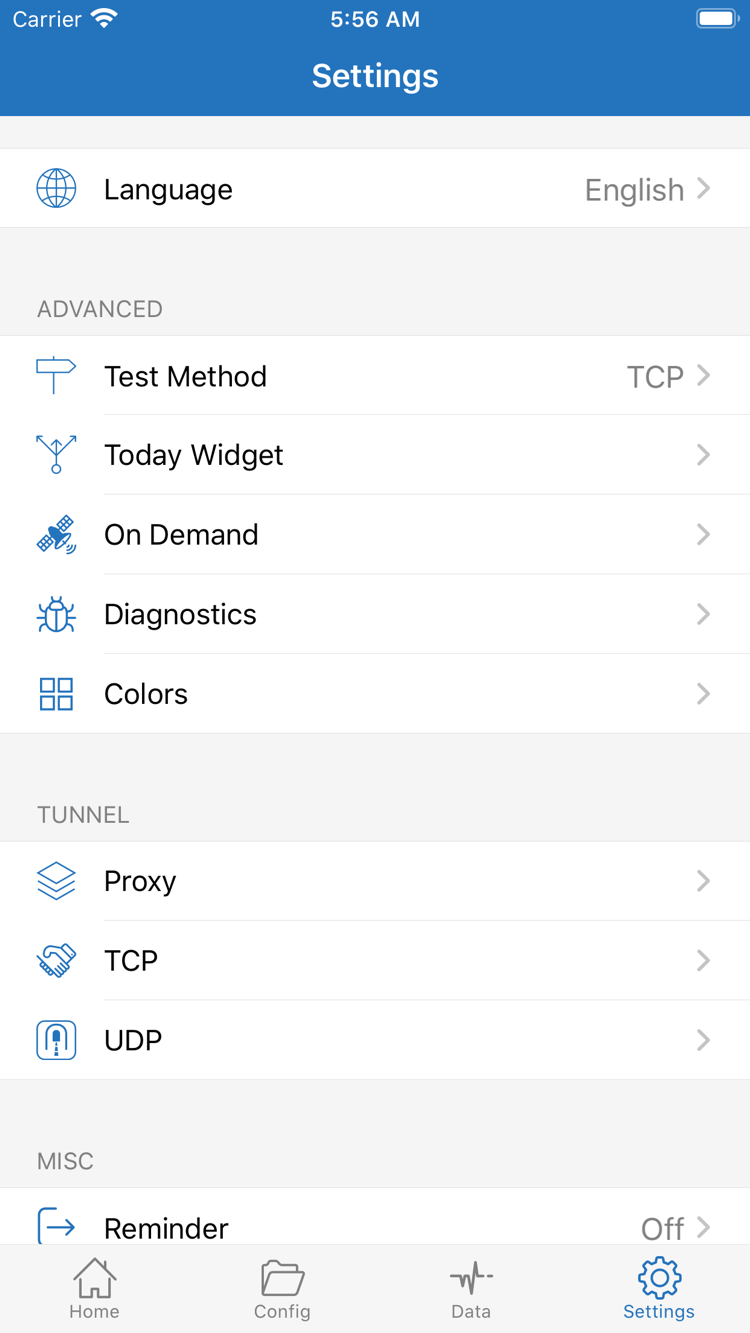
Open Settings and check Test Method to confirm what the earlier test actually checked. A test response isn't a substitute for a complete request. An issue with one destination may also involve DNS, rule selection, the destination service, or the app's own cache. Return to Global Routing and make a documented comparison between modes before deciding whether to inspect Rule in Config. Don't add several broad rules at once.
For more information, check Diagnostics in Settings. Record the mode, network, steps taken, and error text when the issue occurred. Before sharing diagnostic information, check for server addresses, passwords, authentication details, subscription links, or personal browsing records, and remove anything sensitive that isn't needed. Check screenshots too; a settings screen isn't automatically safe to share publicly.
Set Up On Demand Only After Manual Connection Works
On Demand triggers a connection under specified conditions; it doesn't make a server more reliable. For your first setup, configure it only after a manual connection and rule checks are working. Review each trigger condition individually. You don't need to change every category in Settings, such as Proxy, TCP, and UDP, just to complete setup. Make a note of the original value before changing a setting, and adjust it only when you know it relates to the issue.
If the issue remains after these checks, continue with Troubleshooting. For purchase, storefront region, or restoring purchases, see the App Store guide; these aren't connection troubleshooting issues. A reproducible set of steps and the exact error message are usually more useful than a general report that the app isn't working.
After Setup, Keep Track of These Three Items
Confirm the selected server, Global Routing mode, and active Config. When updating a subscription or changing a configuration later, note the current settings first and verify the change using the same destination. Keep your subscription credentials and server authentication details secure, and manage your app purchase records separately from your connection settings.
This guide ends once you've established a connection you can verify. In everyday use, add rules, set up automatic connections, or change test methods only when there's a clear reason. There's no need to change settings that already work just to match the screenshots.